Let’s Get Started:
What is Google Search Central and why is it important?
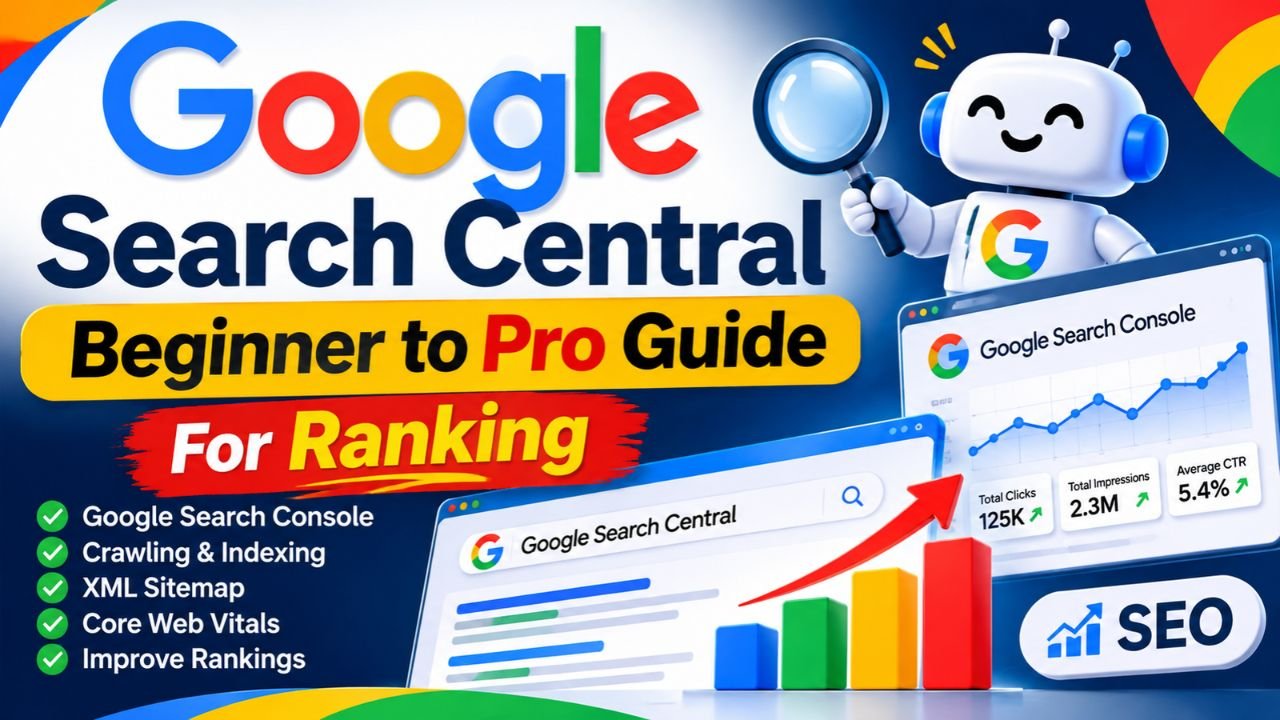
Simply put Google Search Central is Google’s official hub for website owners SEO experts and web developers. Its primary purpose is to help you understand how Google Search works and how you can get your website to the top of Google’s search results.
When you create a new website Google doesn’t automatically know you’re creating a new world on the internet. You have to tell Google that your site exists and what topics your pages are about. This is where Google Search Central becomes your best friend.
On this platform you get not only theoretical knowledge but also real tools and documentation:
- Google Search Console (GSC): This is the most important free tool in the ecosystem. It lets you see how many clicks your site is getting which keywords are ranking and any technical errors your site may have.
- Official SEO Documentation: Here Google itself Google Search Essentials (formerly known as Webmaster Guidelines) shares.
- Search Status Dashboard: If there is ever a global problem with Google’s algorithm or indexing system you get live updates here.
If you want to earn money from blogging or get AdSense approval then moving ahead without understanding Google Search Central is like driving blindfolded. No matter how good you are On-Page SEO Guide Follow it but if Google is not indexing your pages then all your hard work is in vain.
How does Google Search Central work?
Now let’s get a little practical and understand what the system behind Google Search Central actually does when you publish an article . This entire process occurs in three main stages: Crawling Indexing and Serving.
1. Crawling (Googlebots coming to your site)
Google has automated programs called “crawlers” or “Google bots.” Their job is to roam the internet and find new or updated pages. When you connect your site to Google Search Central ‘s tools you give Google bots a direct path.
2. Indexing (understanding and storing content)
Once Googlebot arrives at your page it reads your text images and videos. It tries to understand what your article is about. If your content is unique helpful and high-quality Google saves it in its massive database (called the index). If your site has Technical SEO Mistakes If yes then the page may stop from being indexed.
3. Serving & Ranking (Showing the right result to the right user)
When a user searches for something on Google Google pulls up the most relevant and best pages from its index. Here your content quality page speed and user experience determine whether you’ll rank first or tenth.
A Real-Life Example: Suppose you’ve started a new recipe blog. You’ve written an awesome recipe for “Paneer Tik the.” If you haven’t added your site to Google Search Console it might take Google two weeks to find your page. But if you use Google Search Central ‘s URL Inspection tool your page can be crawled and indexed within a few hours.
Step-by-Step Guide: How to Rank Your Site Using Google Search Central?
Now let’s talk about action. Just reading won’t bring traffic you need to implement these steps on your website. Carefully follow the four steps below:
Step 1: Verify your website
First you need to go to Google Search Console (which is a major part of Google Search Central ) and log in with your Gmail ID. There you’ll find two options: “Domain” and “URL Prefix.”
- Domain Option: This involves adding a TXT record to your domain provider’s (like GoDaddy or Namecheap) DNS settings. This is the best method because it tracks your entire site (http https www non-www) all at once.
- URL Prefix Option: If you’re afraid to go into DNS settings choose this option. You can complete the verification in 2 minutes by pasting a simple HTML tag into your WordPress site or through Google Analytics.
Step 2: Submit the XML Sitemap
A sitemap is a map of your website that tells Googlebots which important pages and posts are on your site.
- If you use WordPress the RankMath or Yoast SEO plugin automatically creates a sitemap for you (usually [yourdomain.com/sitemap_index.xml](https://yourdomain.com/sitemap_index.xml)).
- Copy this link.
- Click Sitemaps the left menu of Search Console paste your URL and press Submit.
With this Google will automatically get a notification every time a new article is written.
Step 3: Check Core Web Vitals and Mobile Usability
Over 70% of traffic today comes from mobile devices. Google now uses “Mobile-First Indexing ” which means Google looks at the mobile version of your site first.
Go to the Google Search Central dashboard and check the “Core Web Vitals” report. This report tells you how quickly your page loads (LCP) how quickly it responds to user clicks (INP) and how much the layout is shaking while the page loads (CLS). If there are red or yellow warnings compress your images and use a good caching plugin.
Step 4: Performance Report se Low-Hanging Keywords
This is a pro secret used by top bloggers. Once your site has been up for 1-2 months go to the Performance tab in Search Console .
- There turn on Impressions and Average Position .
- Find keywords that are getting a lot of impressions but your position is between 8 to 20 (i.e. below the 1st page of Google or on the top of the 2nd page).
- Open those articles add some fresh content to them some Internal Linking Strategies Put it in and submit it again for indexing. You’ll see those posts in the top 3 in just a few days.
Top Industry Alternatives: Google Search Central of Complete other Tools
When it comes to analyzing your website Google Search Central (and Google Search Console) doesn’t have any direct competitors because it provides data directly from Google. However there are some other major players in the market for SEO optimization competitor research and keyword tracking that can make your workflow even stronger.
You can take your SEO strategy to the next level by using these tools:- Ahrefs / SEMrush: These two are considered the kings of the SEO industry. They allow you to gain insight into your competitors’ backlink profiles top-performing keywords and organic traffic. While these are paid tools their data is extremely useful if you’re serious about blogging and AdSense earnings .
- Bing Webmaster Tools:Just like Google has Search Central Microsoft Bing has its own webmaster platform. Many people ignore Bing but in the US and Western countries Bing still gets significant search traffic. Its interface is similar to Google Search Console.
- RankMath / Yoast SEO (WordPress Plugins): This tools direct search engine to no it is. But when you write content on the website So it guides you in real-time whether your focus keyword has been used in the right place or not.
- If you Do not have the budget initially to Google Search Central And Bing Webmaster Tools can do your work absolutely free. Later when the income starts coming in So you can shift to SEMrush or Ahrefs.
Comparison Table & Honest Pros and Cons
Let’s take a quick comparison to see what the difference is between Google Search Central and paid SEO tools so that you can make your decision easily.
Feature / MetricGoogle Search Central (GSC)Paid Tools (Ahrefs / SEMrush)Cost100% FreeExpensive ($99 to $400+ per month)Data AccuracyExact Google Search DataEstimated Data (Third-party crawlers)
Competitor Analysis
Limited (Only your site data)Advanced (Deep competitor tracking)Backlink DataBasic Google viewMassive global backlink databaseEase of UseBeginner friendlySteeper learning curve
Honest Pros and Cons of Google Search Central
Pros (Benefits):
- This is the official tool of Google.That is why its data is 100% accurate.
- You Do not have to pay a single penny for this.It is completely free.
- You will immediately know how healthy your site is in the eyes of Google.
- Cons (Disadvantages/ Limitations):
- You cannot directly see the hidden keywords of your competitors through this.
- Historical data is saved only for the last 16 months after that the data gets deleted as it becomes old.
- This is a bit limited for advanced keyword research.
Frequently Asked Questions (FAQs)
Do I need to know how to code to use Google Search Central?
Absolutely not. You Do not need to write a single line of coding to use Google Search Central . If you’re on WordPress or Blogger the entire setup is done in 5 minutes with plugins.
Can I get AdSense approval without Google Search Central?
Approval may be available But this is full of risk. If your site is not indexed properly or has any indexing errors Then the AdSense team will reject your site calling it low-value content. Therefore it is wise to add the site to Search Console first.
My sitemap is showing “Couldn’t Fetch” in Google Search Console what should I do?
This is a common problem.This means that Googlebot is not able to access your sitemap URL.First of all check your robots.txt file is not blocking the sitemap.Then open the sitemap URL again in the browser and check whether it is loading properly or not.
Can I add more than one website to Google Search Central?
Yes, Absolutely! You can add and manage as many websites (whether on WordPress or Shopify) as you want from a single Gmail account. The data of each site appears differently.
How long does it take for data to start appearing on Google Search Central?
After you verify your new website and submit a sitemap it can typically take 3 to 7 days for Google bots to arrive and collect data. You have to have some patience.
Final Think
So what are you afraid of? Pick up your laptop today itself to your website Google Search Central Connect with And take the first step towards boosting your ranking!
Recent Post
Google Search Central Complete Beginner to Pro Guide for Ranking