Why Learn Manual WordPress Installation via cPanel?
Ever found yourself buying hosting, but the auto-installer isn’t working, or you need complete control over your site’s files and database? That’s when it’s useful to use your hosting’s control panel.
Therefore, when a site owner or developer wants technical clarity, the most useful step is to search for How to Install WordPress Manually via cPanel and Step-by-Step Guide .
Simply put, manual installation means extracting the official WordPress zip file by uploading it to your server’s file manager , creating a MySQL database and users, and connecting them using the browser setup wizard. You can also read our WordPress hosting setup guide later.
When does manual setup work?
-
When the auto-installer gives an error or requires installation in a custom folder/subdomain
-
When you want to understand how files and databases connect together
-
When you want to start a new WordPress instance in a clean and controlled way
Look brother, it takes a little attention in the beginning, but once you understand it, troubleshooting becomes quite easy.
Guide to the image to place under this heading: Place a clean control panel or hosting dashboard graphic that displays files, databases, and site management tools in a simple style. Don’t place any fake promises or misleading text.
What Happens During a Manual WordPress Setup?
Now let’s see which part connects to each other when you install the site manually.
On one side are your WordPress files (like wp-contentthemes, plugins, and core files) that reside in the server’s file system. On the other side is the database where posts, pages, users, and site settings are stored.
When browser setup is complete, it wp-config.phpconnects to the database via WordPress and your site begins rendering live pages.
In simple words, the flow is like this:
Official WordPress Zip -> File Manager Extract -> Database & User -> Browser Setup Wizard -> Live Site
Two Essential Things That Work Together
-
WordPress Files:
public_htmlStored in the server’s (or target folder). -
Database & User: Database is created and user is given full privileges on that database so that tables can be created.
-
Configuration Details: Database name, username, password, and host (
localhostoften common, or according to the host) must be filled correctly.
Most importantly, always get official files from a trusted source. It’s always best to check out the WordPress.org official site and the cPanel Documentation for official downloads and documentation.
Guide to the image below this heading: Install a clean database diagram that shows database storage, server tables, and data flow in a simple style.
Preparing Files and Database Before Installation
This simply means that before starting the setup, you should have three things clear: the latest official WordPress package, the correct target directory, and the details of the new database.
If you prepare according to How to Install WordPress Manually via cPanel and Step-by-Step Guide , then the risk of stopping midway or putting files in the wrong folder is reduced.
Important Points for Preparation
-
Choose the right directory: For the main domain
public_html, there is often one, while for the subdomain or subfolder, there is its own specific folder. -
Keep Strong Credentials: Keep the password of the database user strong and save it safely in your notes.
-
Keep a clean environment: If there are old or random files already in that folder, then do a check and backup first.
Otherwise, if the database user doesn’t have the correct permissions or there’s a spelling mistake, the installation wizard may display a database connection error. You can also check our WordPress security checklist .
Step by Step Guide to Install WordPress Manually via cPanel
If you’re performing a manual setup for the first time, carefully review each step. Otherwise, a small spelling or permission error could halt the setup.
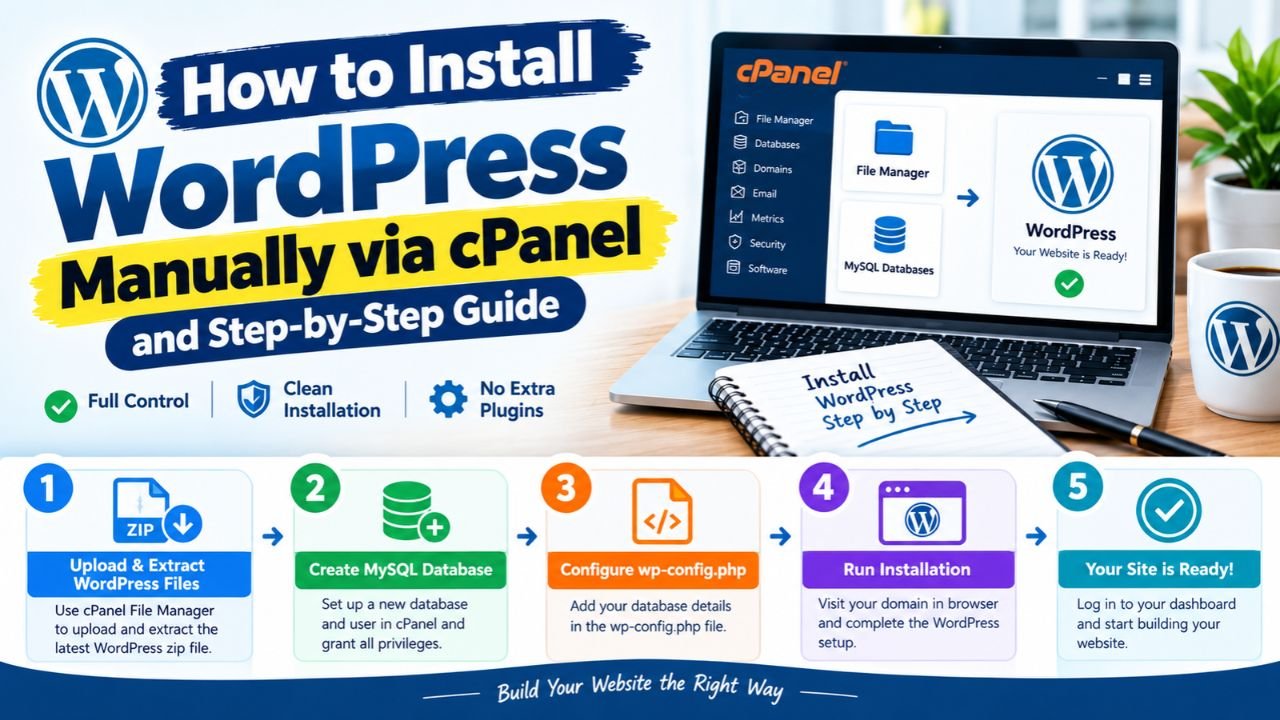
This step-by-step process shows you how to install WordPress manually via cPanel and how to install it cleanly and safely as per the step-by-step guide :
-
Create a MySQL database and user: Create a new database using the database wizard or the MySQL databases section in cPanel, create a user with a strong password, and assign the user All Privileges on the database.
-
Upload and extract the WordPress zip: Go to cPanel’s File Manager
public_html, open the target folder (e.g., ), upload the official WordPress zip, and extract it. If the files are extracted to an additional internal folder, move them to the target folder. -
Run the browser installation wizard: Open your domain or target URL in a browser. Enter the database name, username, password, and host details so that the WordPress configuration can be saved.
-
Site title, admin login, and complete basic checks: Complete the installation by setting your site title, strong admin username/password, and email. Then open the dashboard and live site on both mobile and desktop and check.
Most importantly, there are no fake shortcuts to setup or approval. A clean installation, SSL/HTTPS, and original helpful content are key to building trust. You can also check out our WordPress hosting setup guide later.
Guide to the image to place under this heading: Use a clean graphic that shows the cPanel File Manager or upload/extract workflow in a simple style. Don’t use fake promises or misleading text.
Manual Setup vs One-Click Installers and Alternatives
Now an important question arises: should we use the manual method every time, or should we also consider auto-installer and other methods?
In fact, most hosting platforms offer one-click WordPress installers (like Softaculous or host-specific installers) that automatically handle database and file loading. Additionally, the concept of WP-CLI or managed setups is also found in developer workflows.
Each method has its own use case. Auto-installation saves time, while manual setup gives you a real understanding of how files and databases work.
Which method should be understood when?
-
If you want fast and simple setup and the installer is available, it ‘s easier to look for the one-click installer option.
-
If the installer is giving issues or you need hands-on control of files/database, manual cPanel setup comes in handy.
-
You can understand the core parts of WordPress in easier language by reading our WordPress beginner guide .
Pros and Cons of Manual WordPress Installation
Any technical approach has its advantages and challenges. It’s important to get the truth and balance right so you can work with realistic expectations.
Pros (Length)
-
Better technical understanding: You have a clear idea of where files are stored and how databases are linked.
-
Custom folder or help in tricky cases: When the auto-installer doesn’t work or you need a specific directory, the manual method comes in handy.
-
Clean start control: You can verify yourself that fresh files have come from an official source.
Cons (Challenges)
-
More steps and attention: Zip upload, extract, database user, privileges, and credentials are subject to error.
-
A little extra time: Beginners may take a little extra time to understand the steps the first time.
-
Post-setup care is essential: After installation, don’t forget to check SSL, permalinks, backups, and security basics.
Look, with a little patience and careful steps, manual installation is perfectly manageable. You can also check out our WordPress security checklist .
Frequently Asked Questions
What does How to Install WordPress Manually via cPanel and Step-by-Step Guide cover for beginners? In simple words, it includes creating a database and user, uploading and extracting the WordPress zip from the cPanel File Manager, running the browser setup wizard, and making the site live after performing basic checks.
Do I need coding skills to install WordPress manually via cPanel? No, even a beginner can perform a manual install by following basic step-by-step instructions; just enter the correct database details, folder location, and login information.
Which folder should I upload WordPress files to in cPanel? This is often used for the main domain public_html, but if you’re installing to a subdomain or subfolder, the files are placed in a specific folder for that folder.
What should I do if I see a database connection error during setup? Database name, database username, password, database host, aur user ke database privileges dobara check karo taake spelling ya permission mein koi ghalti na ho.
Does manual WordPress installation affect SEO or AdSense approval on its own? No, the method of installation itself does not determine SEO or approval; the real thing is site speed, clean design, policy compliance, and original helpful content.
Final Thoughts
Look, brother, the first step in any technical skill is the most important – take a clear, step-by-step approach today, work on original and helpful content, and keep moving forward a little bit every day; one day you’ll be proud of your achievements!