Let’s Get Started:
Look when you create your first blog or a client’s website you obviously go to the hosting panel first. Most people go there by clicking on Softaculous or some auto-installer button. The auto-installer can create a site in a couple of minutes but the real problem arises when the installer suddenly crashes, a security script fails or you have to set up WordPress on a custom server without any auto-installer.
That’s why today we will be explain in simple language, How to Install WordPress Manually via cPanel and Step-by-Step Guide. If you want to become a serious blogger web designer or SEO expert you should definitely know how to do a manual setup via cPanel.
+-----------------------------------------------------------------------+
|                 cPanel Manual Installation Architecture               |
+-----------------------------------------------------------------------+
|                                                                       |
|   1. Upload Core Files    -->   [ public_html / Site Directory ]      |
|                                                |                      |
|   2. Create MySQL Database -->   [ DB Name + DB User + Privileges ]    |
|                                                |                      |
|   3. Connect via Config   -->   [ wp-config.php Configuration ]       |
|                                                |                      |
|   4. Run Install Script   -->   [ http://yourdomain.com/wp-admin ]    |
|                                                |                      |
+-----------------------------------------------------------------------+
So the thing is, auto-installers often install unnecessary junk plugins and extra files. In fact, when you follow the manual process all your core files are 100% clean. Most importantly, you yourself know which database is associated with which exact folder. Throughout this guide we’ll reveal all the secrets of visual diagrams database setup and configuration so you don’t face any technical difficulties.
What is required for cPanel Manual WordPress Setup?
Before you begin the manual installation, you should have 3-4 basic items ready. If these are already ready, you’ll be done in barely 5 minutes.
Basic Requirements Checklist
-
Active Web Hosting Account: Your cPanel login ID and password.
-
Registered Domain Name: Which is pointed to the nameservers ( ) of your web hosting .
NS1/NS2 -
Latest WordPress Zip File: Official website see download of zip file.
-
Stable Internet Connection: Slightly better net for uploading files.
The first thing you have to do is go to the main WordPress site and download the latest zip folder.
Important Resource: Always use the official site for fresh packages. You Official WordPress Download Portal
.zipYou can download the latest file for free from here . ‘Do NOT download files from random third party sites as they may be contain malware or viruses.
How does cPanel Manual Installation work?
Simply put WordPress is a Database-based CMS. This simply means that your website is made up of two distinct parts:
-
Frontend Files & Media (PHP / CSS / JS): These files are all saved in a folder on your hosting . Your images themes and plugins are stored here.
public_html -
Backend Database (MySQL / MariaDB): All your blog posts, pages passwords, and comments are stored as tables within a MySQL database.
                     +---------------------------+
                     |    cPanel Dashboard       |
                     +-------------+-------------+
                                   |
           +-----------------------+-----------------------+
           |                                               |
           v                                               v
+----------------------+                       +-----------------------+
|     File Manager     |                       |    MySQL Databases    |
| (Extract Core Files) |                       | (Create DB & User)    |
+----------+-----------+                       +-----------+-----------+
           |                                               |
           +-----------------------+-----------------------+
                                   |
                                   v
                       +-----------------------+
                       |    wp-config.php      |
                       |  (Links DB to Site)   |
                       +-----------+-----------+
                                   |
                                   v
                       +-----------------------+
                       |  WordPress Installer  |
                       | (Setup Site Title/ID) |
                       +-----------------------+
Next thing, when you do a manual setup, you connect these two parts wp-config.phptogether through a special file called . Once these two are connected Your installation screen appears and your site goes live.
Otherwise if you understand this simple math DirectAdmin PleskOr you can easily set up WordPress on any custom server.
How to Install WordPress Manually via cPanel
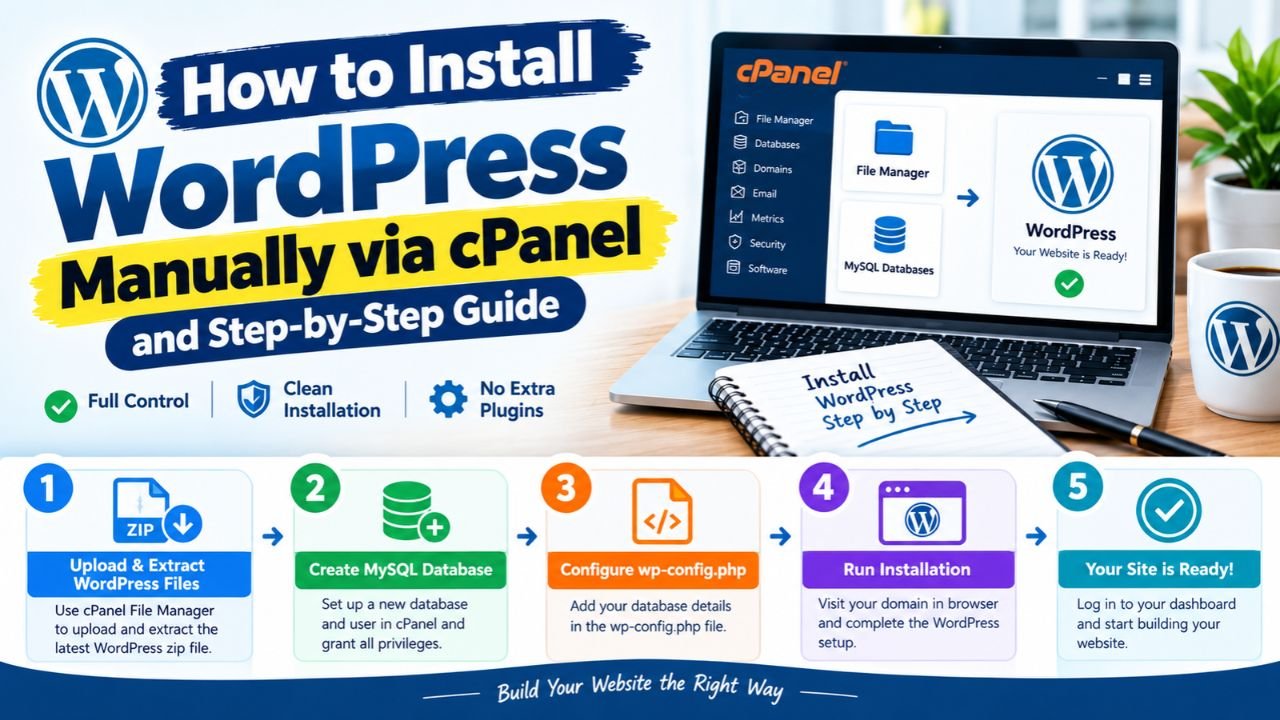
Let us now get down to business directly and see step by step howStep-by-Step Guide: How to Install WordPress Manually via cPanelHow to complete it. We have divided it into 5 easy steps.
WordPress ZIP Upload & Extraction via cPanel File Manager
First of all login to your cPanel account. On the main dashboard you Files block to File Manager The option will appear.
cPanel Dashboard -> Files -> File Manager -> public_html
-
Open the File Manager. Double-Click on a folder to go inside it. (‘If it is the main domain go to it or if it is a subdomain go to its specific folder’).
public htmlpublic html -
Upload the ZIP file: Click the Upload button in the menu above . Now select the file you downloaded from the official site and upload it.
wordpress.zip -
Extract Package: ‘Once the upload is complete return to the File Manager right-click on the zip file and press Extract’ .
-
Move Files to Root: After unzipping, a
wordpressA folder with the name will be created. Go inside that folder Select Alland direct all filespublic htmlMove it to the folder.
Note: Keep in mind that all files
public_htmlmust be in the direct directory,public_html/wordpress/not inside the . Otherwise, your site[yourdomain.com/wordpress](https://yourdomain.com/wordpress)will start running.
MySQL Database, Database User and Password Create
After placing the files in the folder, we now need to create a new database where all the data will be saved. Return to the dashboard in cPanel and click on the MySQL Database Wizard in the Databases section .
-
Database Name): Enter any name for your database (eg
wpdb). cPanel will automatically add your username to it (egusername_wpdb. Copy this name to notepad and click Next Step . -
Database User & Password: Now name a database user (eg.
wpuser). After this generate a strong password and save it on notepad and click on Create User.
Pro Tip: Write down the database name user & password somewhere safe. We’ll need these three in the next step.
Database User of Full Privileges Assign
After creating a user cPanel will take you to the Privileges screen. Here you must grant the user full permissions.
-
Select All Privileges: Tick the ALL PRIVILEGES box at the top .
-
Save Changes: Go to the end of the page and click on the Make Changes button.
Look brother if you miss this step then WordPress will not be able to talk to the database and you will get an error.
wp-config.php File Configuration And Secret Salt Keys Setup
Now we need to add the WordPress files to your newly created database. To do this go back to the cPanel File Manager and public_htmlopen the folder.
-
Rename Sample File: Find the File with the name here . Right-click, choose Rename , and rename it .
wp-config-sample.phpwp-config.php -
Edit Configuration File: Right-click on the file and click on Edit .
-
Enter Database Details: Go inside the Code and enter your Details on the lines below:
-
Define( 'DB_NAME', 'database_name_here' );-> Enter Your complete database name here. -
Define( 'DB_USER', 'username_here' );-> Here You can enter your database user. -
Define( 'DB_PASSWORD', 'password_here' );-> Enter password here. -
Define( 'DB_HOST', 'localhost' );-> IscolocalhostLet it remain.
-
-
Add Secret Keys:To strengthen the security of the site, generate and paste the salt keys of WordPress.and then Save Changes Close the file by pressing it.
External Reference: To make WordPress more secure, you Official WordPress Hardening Guide You can also read it.
Popular 5-Minute Installation Script Run
Your entire background setup is complete! ‘Now you just need to complete the last step from your browser’.
-
Open Domain: Open your domain in Your Chrome or Firefox browser (e.g.
[https://yourdomain.com](https://yourdomain.com)). -
Select Language: Select your language (e.g. English) and Click Continue .
-
Enter Site Details: Here, enter your site name ( Site Title ), your login username , a Strong password , and your Email.
-
Install WordPress: ‘Niche Install WordPress Click on it’. ‘In just 5 to 10 seconds, you Will get the message of success’.
In simple words Your manual WordPress installation setup has been successfully completed and you[yourdomain.com/wp-admin](https://yourdomain.com/wp-admin)You can login by going to.
5. Softaculous vs FTP (FileZilla) Method
Look, brother, besides the cPanel File Manager, there are two other ways to set up WordPress. If your server doesn’t allow you to upload a zip file via cPanel, you can use an FTP client. The table below will help you understand:
Otherwise, if your internet is slow or disconnected,So FileZilla (FTP) is the best option because it resumes the stopped file transfer from where it left off.
6. Data Table advantages and Disadvantages
Both manual installation and auto-installer have their own advantages and disadvantages. Let us take a look at these also:
Manual vs Automated Setup Summary
Advantages and Potential Risks
-
Pros (Benefits):
-
Your folders and files remain absolutely clean.
-
Keeping a custom database prefix provides protection from hackers.
-
There is no fear of any third-party app or plugin crashing.
-
-
Cons:
-
‘It may take some time for those doing it for the first time’.
-
‘A Small spelling mistake in the database name or password can cause an error’.
-
7. Troubleshooting of Common Errors (‘Database Connection Refused & 500 Internal Error’)
If you encounter any problems during manual installation, don’t worry. Check out the solutions below:
-
Error Establishing a Database Connection: ‘This problem occurs if you have entered
wp-config.phpthe database name, user or password incorrectly in the file. Go back to cPanel check and edit the credentials’. -
500 Internal Server Error: ‘This error
.htaccessis often caused by a corrupted file. Go to File Manager,.htaccessrename the file, and refresh the page to check’.
8. Frequently Asked Questions (FAQs)
Do you need to know how to code to manually setup using cPanel?
No, not at all! You won’t have to write a single line of HTML or PHP. Everything is done using cPanel’s buttons and forms.
Will manual setup speed up my site?
Yes, absolutely! Manual setup doesn’t install any unnecessary themes or junk plugins. Your website remains lightweight, which significantly speeds up loading.
What will happen if I wp-config.phpenter the wrong password?
There will be no harm,Just “Error establishing a database connection” will appear in the browser. You can edit the file again and enter the correct password. The site will start working.
Can I do manual setup on free hosting also?
Often free hosting providers do not provide complete options in cPanel or block the File Manager. Therefore, for good work, always use good paid hosting.
Why is it important to grant the database user All Privileges?
Unless you give the user full permissions, WordPress won’t be able to create new tables within the database and your setup will freeze.
9. Final Think
So the thing is manual WordPress setup can seem a bit technical at first, but once you are tried it a couple of times it will be a cakewalk. In fact, once you get the hang of it, you can easily launch a website on any hosting.
What are you talking about now? Open cPanel, WordPress of official zip download, And try manually deploying your website today!
More Read
How to Install WordPress Manually via cPanel and Step-by-Step Guide