Introduction:
Hello Friends, Listen friend if the organic traffic on your website has suddenly dropped or new articles are not getting indexed on Google then there are 90% chances that your site has indexing errors.
Seeing red errors upon logging into Search Console is bound to cause tension for any blogger or website owner. But there is no need to panic. In this guide to Search Console Coverage Issues you ‘ll learn how to fix all these technical errors without the help of a developer.
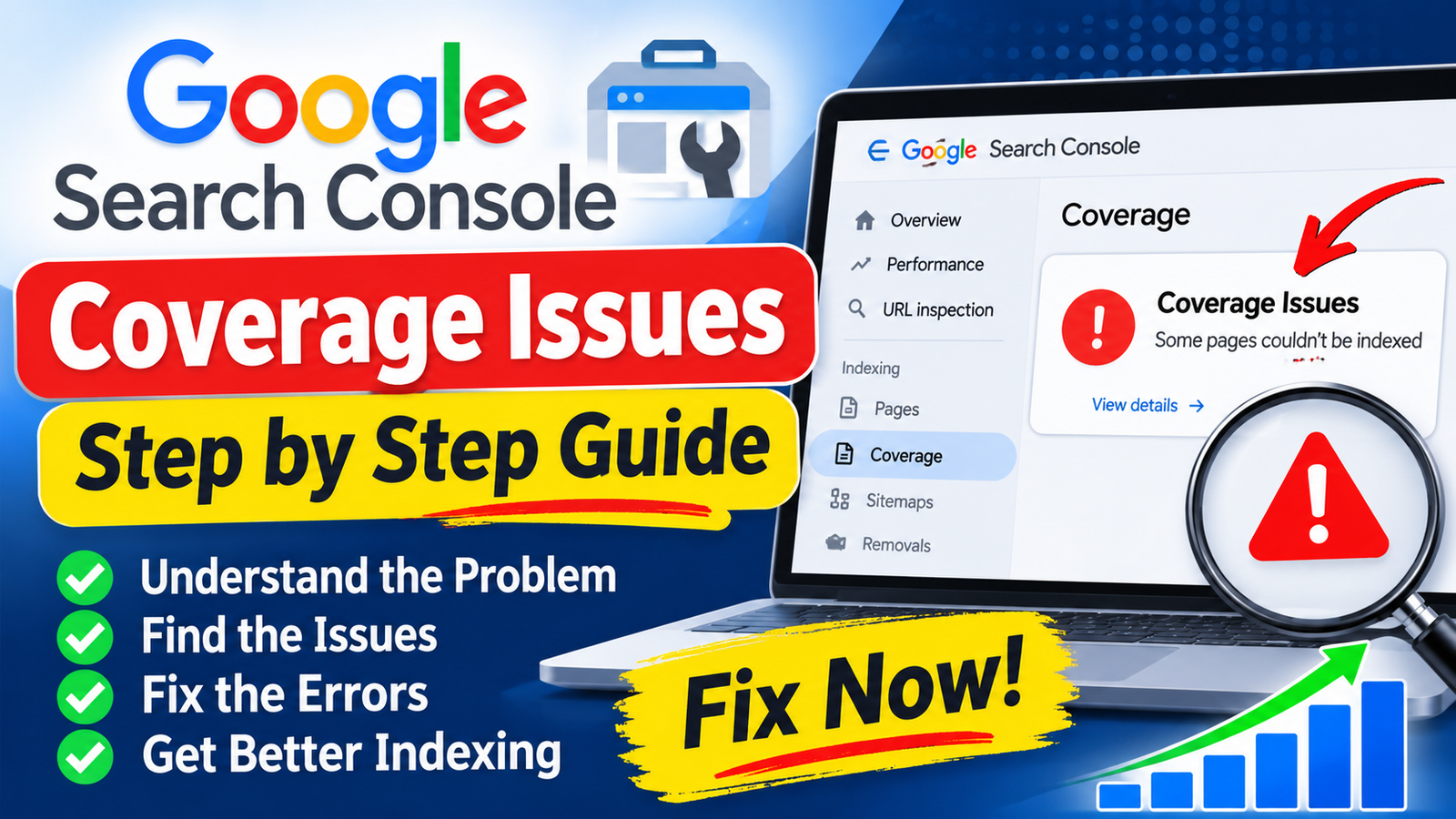
The Page Coverage Report (now also called the ‘Pages’ report) in Google Search Console (GSC) tells you which pages of your site Googlebot has crawled which pages have been successfully indexed and why others have been rejected or excluded.
Unless you fix these coverage errors no matter how great your content is it won’t rank at the top of Google Search. So let’s understand this in detail and follow each in simple language.
Coverage Section The Real World Mechanism and Google Indexing
First it is important to understand how Googlebot works. Whenever you publish a new page or blog post on your website Google’s bot crawls your site analyzes the content and then decides whether or not the page should be included in the Google Index database.
The Coverage Report in Search Console basically divides all your URLs into 4 main status categories:
- Error (Red): This means that the page could not be indexed and there is a serious technical issue which needs to be fixed immediately.
- Valid with Warnings (Yellow): The page has been indexed but there is a minor problem (such as being indexed despite being blocked by robots.txt).
- Valid (Green): Everything is perfect. The page has been successfully indexed and is ready to appear in Google Search results.
- Excluded (Grey): Google has intentionally not indexed these pages. This includes duplicate content canonical tags or redirect URLs.
Most issues that appear in Search Console are related to server status broken links noindex tags or crawl budget.Google Search Console Official DocumentationYou can understand the exact identity of these technical status codes by referring to .
If you are using the RankMath or Yoast SEO plugin half of the errors are automatically resolved through sitemap optimization. Technical SEO Checklist By reading this you can verify the basic settings of your site in advance.
Common Search Console Coverage Errors and Form Exact Meaning
Humans learn from mistakes but in SEO knowing the meaning of an error beforehand saves time. The most common errors seen in Search Console are listed below:
1. Server Error (5xx)
This means that when Googlebot visited your site your server was not responding. This could be due to a web hosting issue a database crash or a heavy plugin installed.
2. Redirect Error
When your page is redirecting to the wrong place such as a redirect loop URL expiration or a mismatch from HTTP to HTTPS redirect.
3. Submitted URL Marked ‘noindex’
This happens when you’ve told Google to “index this page” through an XML Sitemap but the tag is already embedded in the page’s HTML code . Google gets confused and displays an error. noindex
4. Submitted URL Blocked by robots.txt
You have sent the URL in the sitemap but your robots.txt file has prevented Googlebot from crawling that page.
5. Submitted URL Seems to be a Soft 404
When a page shows “Not Found” or empty content to the user but the server sends a 200 OK status code to Googlebot. Google considers this a ‘Soft 404’ because the page lacks value adding content.
How to make Search Console Coverage Issues Fix
Now let’s get to the point: how to clear all these errors by so that your Coverage report turns green. Follow this Search Console Coverage Issues by guide carefully.
1: Log in to Search Console and open the Coverage/Pages Report
First go to your Google Search Console dashboard. Click on Pages under the Indexation tab in the lefthand menu . Here you’ll see a graph with complete data on Error Warning and Excluded statuses. Scroll down to the bottom and you’ll see a list of ‘Why pages aren’t indexed.’
2: Identify the affected URLs by clicking on the specific error.
Click on the error that appears in red . Search Console will show you a list of all the URLs affected by this specific issue.
Hover over a URL and paste it into the URL Inspection Tool (search bar at top). This tool will give you a live status of how the page currently appears to Googlebot.
3: Apply Technical Fix According to Issue
- If it’s a Server Error (5xx): Talk to your web hosting provider or check the server logs. Increase resource limits and clear the caching plugin.
- If it’s a ‘noindex’ Error: If the page is important (like a blog post) go to Yoast/RankMath settings and check the Advanced tab to see if ‘Allow search engines to show this Content’ is on. Also check the page source code and remove the meta tag. You are our Fix Noindex Tag Tutorial You can read the report.
- If it’s Blocked by robots.txt: Open your site . See if there is a next to that URL path? If yes then delete it .[domain.com/robots.txt](https://domain.com/robots.txt)Disallow:Allow:
- If it’s a Soft 404 Error: Add quality content to the page apply a 301 redirect to a relevant live page or pass a correct 404/410 status code if the page doesn’t exist.
4: Test the Live URL and Validate the Fix
After applying the fix click the Test Live URL button on the URL Inspection Tool in Search Console. If the test is successful and a green checkmark appears go back to the Coverage Error report.
Click the Validate Fix button there . Google will queue your request and within a few days recrawl those pages and update the report.
Top GSC Alternatives & SEO Audit Tools
Google Search Console is free and provides verified Google indexing data but its limitation is that it does not provide automatic actionable fixes. That is why professional SEOs use Search Console along with premium and free thirdparty audit tools to scan for technical errors in minutes.
cPanel
1. Screaming Frog SEO Spider
This is a desktop based crawler that crawls your entire site like Googlebot and can export missing canonical tags. The free version allows you to crawl up to 500 URLs. Screaming Frog se tum single click me noindex pages broken links (404) redirect loops (301)
2. Ahrefs Site Audit / Semrush Site Audit
Another,cloudbased enterprise platforms so. They perform a more indepth analysis than GSC. These tools provide an overall analysis of your site .Site Audit module Health Score (0100)and provide realtime alerts whenever a new coverage error emerges.
3. SEOptimer & RankMath Analyzer
If you want lightweight browser auditing without a deep learning curve to SEOptimer Website Audit Tool It is a fast and accurate tool that checks onpage SEO along with technical indexing parameters. For WordPress users RankMath SEO Plugin ka inbuilt audit module best hai.
Detailed Table & Pros/Cons Breakdown
From the comparison table given below you can understand in simple language what is the difference between GSC and other tools:
Feature / MetricGoogle Search Console (GSC)Screaming FrogSemrush / AhrefsPricing 100% FreeFree (500 URLs) / PaidPaid (Free Trial Available) Data Accuracy100% Real Google Index DataSimulated Bot DataSimulated Bot DataFix SuggestionsBasic Hints OnlyTechnical Root Causeby Fix InstructionsRealtime Live CrawlDelay (2448 Hours)Instant RealtimeScheduled / Instant Ease of UseBeginner FriendlyIntermediate / AdvancedBeginner to Advanced
Search Console Coverage Report Fixes Key Pros & Cons
Pros (Benefits):
- Direct Ranking Boost: When coverage errors are fixedSo nonindexed pages get indexed and the overall domain authority crawl score of the site increases.
- Crawl Budget Optimization: Removing duplicates and 404 pages allows Googlebot to focus only on your high quality value content.
- AdSense Revenue Growth: When new high CPC articles show up in searchSo AdSense earnings automatically scale with organic traffic.
Cons (Challenges):
- Validation Time: After applying the fixValidate FixAfter clicking Google search crawlers take 37 days or sometimes up to 2 weeks to update.
- Server Dependency:To fix Server 5xx errors one has to depend on the hosting provider or backend developer.
Frequently Asked Questions (FAQs)
How often does Google update the index after fixing coverage issues?
Googlebot starts the validation process after submitting your request. On top sites it gets updated every 3 to 7 days.Whereas on regular ecommerce sites recrawl can take up to 2 weeks.
Are all pages with Excluded Status errors?
Want Excluded status does not mean error. Google deliberately tags pages archive pagesOr it does not index duplicate pages so that the SEO health of the site remains good.
What is the difference between a soft 404 error and a regular 404 error?
A regular 404 error occurs when the page does not exist and the server404 Not Found Gives response. In Soft 404 the page opens but the content on it is very less (thin content).Still the server200 OK Gives the code.
How to remove submitted URL marked noindex?
If the page is on WordPressthen go to RankMath/Yoast settings Robot Metaoption senoindex unchecked index Select and update the post.
Can coverage errors lead to AdSense account blocking?
Want Direct AdSense cannot be made. But if your site receives a high amount of Soft 404 or Low Value Content indexation failures So AdSense approval may decline or Ad impression drops may occur.
Final Result
Well brother, This was Complete Search Console Coverage Issues by guide! Technical SEO seems a little difficult to see But if you enter each error one by one into the URL Inspection tool and identify its exact cause So it becomes very easy to fix it.
Get into the habit of checking the Pages tab of your Search Console on a weekly basis. As soon as any red error pops upFix it immediately Validate Fix request be do. Clean coverage report simply means happy Googlebot and high search engine rankings!
Now open your Google Search Console dashboardPick the first red error and apply the in this guide to get your site ready for top ranking!
Related Post